
Other Common Issues
How to Create a Desktop Shortcut for Snap Hutao Manjusaka (Non-Administrator Mode)
Community Power
Thanks to CzHUV for providing the solution
- Use
Win+Rto open the Run window, and entershell:AppsFolderin the input box.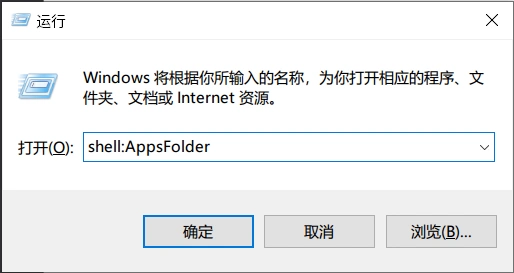
- Windows will open the application directory. Find Snap Hutao Manjusaka.
- Right-click the Snap Hutao Manjusaka icon and select "Create shortcut".
- Follow the system prompts to create a desktop shortcut.
How to Create a Desktop Shortcut for Snap Hutao Manjusaka (Administrator Mode)
- Go to the program settings page of Snap Hutao Manjusaka and click the "Create shortcut" button to generate a shortcut with administrator privileges on the desktop.
How to Make Snap Hutao Manjusaka Start Automatically on Boot
Method 1: Using a Batch File
- Create a batch file. Refer to the command provided in this Issue to make Snap Hutao Manjusaka run directly with administrator privileges.
- Configure the batch file to start automatically using the following methods:
- Create a scheduled task to execute the batch file when the system starts.
- Add the batch file to the system's startup items.
Method 2: Using a Tool
- Use a program like
SkipUACto make Snap Hutao Manjusaka start silently with administrator privileges.
Notes
The above methods may fail due to system configurations or other issues. Snap Hutao Manjusaka does not directly support automatic startup on boot; attempting these methods is at your own risk.
Unable to Start Snap Hutao Manjusaka in Administrator Mode
Scope of the issue: Only applies to Windows 10 versions lower than 22H2.
- When the user's system version is lower than
Windows Build 19045(i.e., Windows 10 22H2 version), it may not be possible to start Snap Hutao Manjusaka in administrator mode. - Solution: It is recommended to upgrade the system to the latest version of Windows 10 to avoid such compatibility issues.
How to Use Snap Hutao Manjusaka with a Network Proxy
Snap Hutao Manjusaka provides a good cloud network structure to ensure users around the world can enjoy high-quality services.
- Configure system or software proxy services.
- It is recommended to enable
Loopback Network. For a detailed tutorial, see here.
Notification Icon Creation Failed
Open PowerShell and run the following command to fix the issue
powershell
irm hut.ao/install.ps1 | iex