
Real-time Notes
Prerequisites
This feature requires you to log in to your MiYouShe / HoYoLAB account in Snap Hutao. See the MiHoYo Multi-Account Switching document for login instructions.
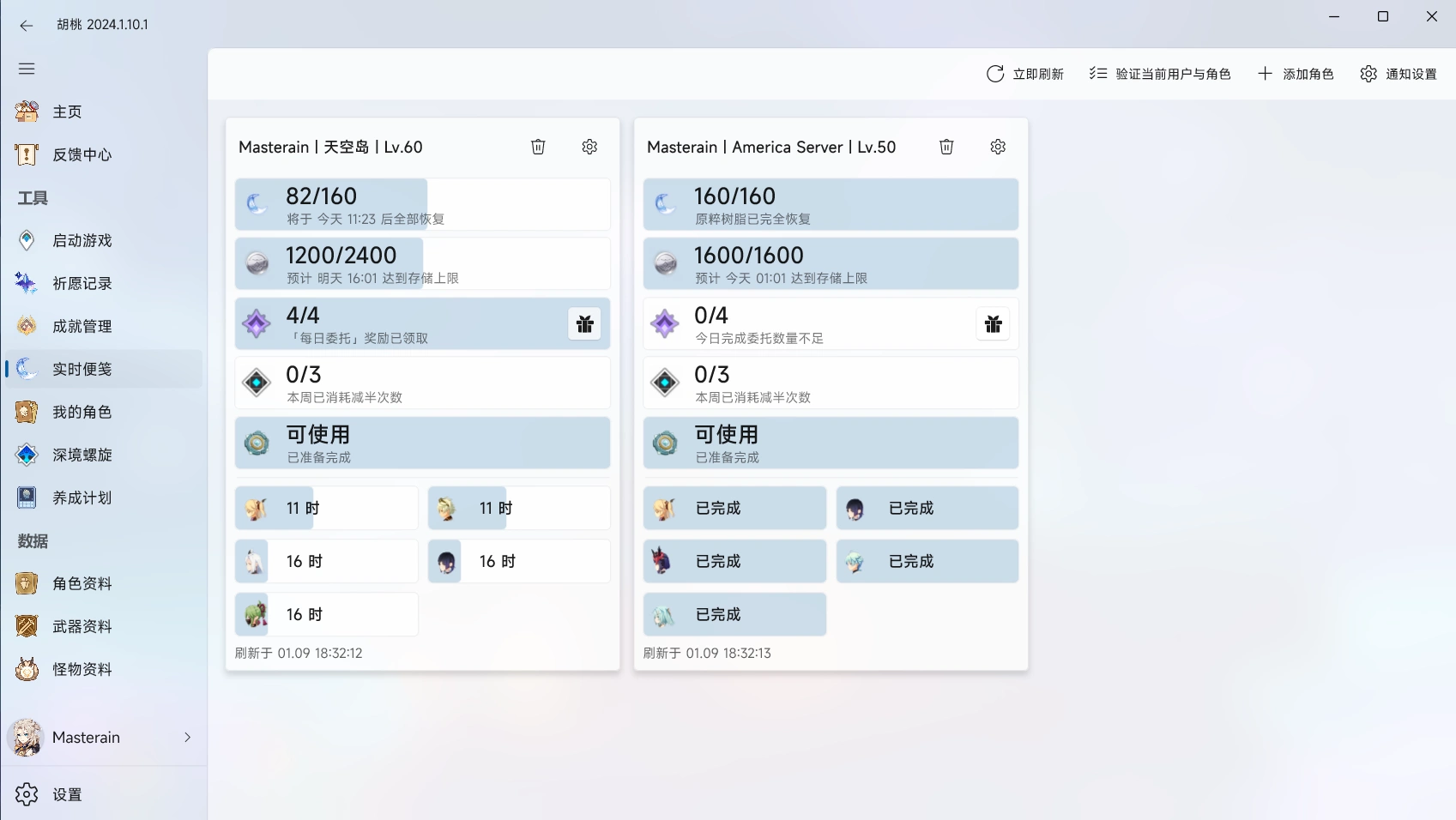
Adding Real-time Notes
- Click the "Add Real-time Notes" button.
- In the "Add Real-time Notes" pop-up window, find the game character UID you want to add and click the plus button to its right.
- The added game character will be displayed on the "Real-time Notes" page.
- Real-time Notes will automatically refresh data at fixed intervals.
- Click "Notification Settings" in the upper-right corner of the window to set the refresh interval.
- To get the latest data immediately, click the "Refresh Now" button.
- If a
-1034error occurs when refreshing data, it means that miHoYo's anti-bot risk control mechanism has been triggered. This can be resolved by configuring invisible verification in the Snap Hutao settings.
Verifying User and Character
If you are using a MiYouShe account, the anti-bot mechanism may trigger a verification code, preventing Real-time Notes data from refreshing. The following steps can solve this issue:
- Click the "Verify Current User and Character" button in the upper-left corner of the Real-time Notes page.
- Snap Hutao will display a verification window. Complete the verification to refresh the data for the affected account.
Global Notification Settings
Clicking "Notification Settings" in the upper-right corner of the window allows you to configure the global behavior of the Real-time Notes feature, including:
- Enable/Disable Automatic Data Refresh.
- Set the Automatic Data Refresh Interval.
- Do Not Disturb Mode:
- When enabled, notifications will only appear in the system notification center.
- High Priority Notifications:
- Prevents notifications from being automatically moved to the action center, but may interfere with daily use.
- Custom Data Forwarding Webhook:
- Snap Hutao allows users to forward Real-time Notes data to third-party programs to reduce direct requests to the miHoYo API.
- Enter the third-party program's
HTTP APIinterface address in the "Real-time Notes Webhook URL" field. Snap Hutao will forward the raw data to this interface using aPOSTrequest.
Account-Specific Settings
- Hover your mouse over the Real-time Notes window of the character whose settings you want to modify.
- Click the settings button in the upper-right corner of the window to access the following settings options:
- Original Resin Reminder Threshold (range: 0–200)
- Realm Currency Reminder Threshold (range: 0–2400)
- Enable Parametric Transformer Reminder (on/off)
- Enable Daily Commission Cap Reminder (on/off)
- Enable Expedition Completion Reminder (on/off)
- After modifying the settings, click the "Save" button to save the current settings.
Deleting a Character
- Hover your mouse over the Real-time Notes window of the character you want to delete.
- Click the remove button in the upper-right corner of the window to delete the Real-time Notes for that character.
Frequently Asked Questions
Why does setting automatic refresh for Real-time Notes display "Failed to modify Scheduled Task"?
- Automatic refresh of Real-time Notes relies on the Windows Task Scheduler.
- To avoid permission issues, Snap Hutao sets task schedules in non-administrator mode.
Solutions:
- If you have enabled automatic refresh in an older version, you can manually delete the old task schedule in Task Scheduler. The task schedule name is
SnapHutaoDailyNoteRefreshTask. - If you have not enabled task schedules before, the current Windows user account may not have sufficient permissions. Try using an administrator account.
- If the problem persists, you may need to reinstall the system.